Interpreting Results#
Now that we have trained different variations of the model, we now proceed to the exciting part, which is associating different components/aspects of the model training process with the overall performance, and draw conclusions about their impacts.
In this tutorial, we will demonstrate how to interpret results from the experiment output directory that was generated in the Hyperparameter Optimization tutorial.
There are two main steps to interpret the results of the ablation study:
Use
`ablator.analysis.results.Results<../ablator.analysis.results.rst>`__ module to consolidates the metrics from all the trials into a unified combined dataframe.Use
`ablator.analysis.plot.Plot<../ablator.analysis.plot.main.rst>`__ to generate plots for the metrics and parameters.
Let us first import the necessary libraries and modules:
from ablator.analysis.results import Results # for formatting results
from ablator import PlotAnalysis, Optim # for plotting

from ablator import ParallelConfig, ModelConfig, configclass # for configs

from pathlib import Path # for defining path
import pandas as pd # for reading dataframe
Generate analysis Report#
Generating results#
The `ablator.analysis.results.Results <../ablator.analysis.results.rst>`__ module is responsible for processing the results within all the trial directories in the experiment output directory. In specific, Results.read_results() method reads multiple results in parallel from the experiment directory using Ray, then returns all the combined metrics as a dataframe.
ablator.analysis.results.Results has several parameters:
config: The running config class that is used in the experiment. Here it should beCustomParallelConfig, so make sure that the same config class used in the HPO tutorial is used here.experiment_dir: the experiment output directory (/tmp/experiments/experiment_<experiment id>)use_ray: either to use ray to parallelize the result reading process or not.
Below is a concrete example of how to read the results of an experiment:
@configclass
class CustomModelConfig(ModelConfig):
  num_filter1: int
  num_filter2: int
  activation: str

@configclass
class CustomParallelConfig(ParallelConfig):
  model_config: CustomModelConfig

directory_path = Path('/tmp/experiments/experiment_1901_aa90')

results = Results(config = CustomParallelConfig, experiment_dir=directory_path, use_ray=True)

df = results.read_results(config_type=CustomParallelConfig, experiment_dir=directory_path)

df.to_csv("results.csv") # Optional: save the results to results.csv
Plotting graphs#
The ablator.analysis.plot.PlotAnalysis class is utilized for plotting graphs.
The responsibilities of the PlotAnalysis class include:
Generating plots for the provided metrics and parameters.
Mapping the output and attribute names to user-provided names for better readability.
Storing the generated plots in the desired directory.
We first create python dictionaries that map the configuration parameters (one for categorical and one for numerical parameters) to custom labels for the plots. This improves the readability of the plots. However, renaming attributes/metrics to custom names is optional. If not provided, the names will be the default like train_config.batch_size.
Below is an example of how to create these dictionaries. The keys of the dictionary are the configuration parameters and the values are the custom names:
categorical_name_remap = {
    "model_config.activation": "Activation",
}
numerical_name_remap = {
    "model_config.num_filter1": "N. Filter 1",
    "model_config.num_filter2": "N. Filter 2",
    "train_config.optimizer_config.arguments.lr": "Learning Rate",
}

attribute_name_remap = {**categorical_name_remap, **numerical_name_remap}
Finally, we use the dataframe generated by ablator.analysis.results.Results and the name remap to initialize the PlotAnalysis object and to generate the plots. PlotAnalysis object is initialized with the following parameters:
dataframe: Pandas dataframe.save_dir: Directory to save plots to.cache: Whether to cache results.optim_metrics: A dictionary mapping metric names to optimization directions.numerical_attributes: List of all numerical hyerparameters names.categorical_attributes: List of all categorical hyerparameters names.
analysis = PlotAnalysis(
    df,
    save_dir="./plots",
    cache=True,
    optim_metrics={"val_accuracy": Optim.max},
    numerical_attributes=list(numerical_name_remap.keys()),
    categorical_attributes=list(categorical_name_remap.keys()),
)
The PlotAnalysis.make_figures() method is responsible for generating graphs, specifically Linear plots for numerical attributes and violin plots for categorical values. To generate these plots, call this function, passing the metric-attribute mappings dictionary:
analysis.make_figures(
        metric_name_remap={
            "val_accuracy": "Validation Accuracy",
        },
        attribute_name_remap= attribute_name_remap
    )
You can find the plots stored in ./plots directory.
Read analysis report and draw conclusions#
Now, we can see the plots generated for our previous HPO tutorial. These plots represent the experiment conducted in the HPO chapter. The results may vary depending on the specific values used for each trial within the search space.
Linearplots#
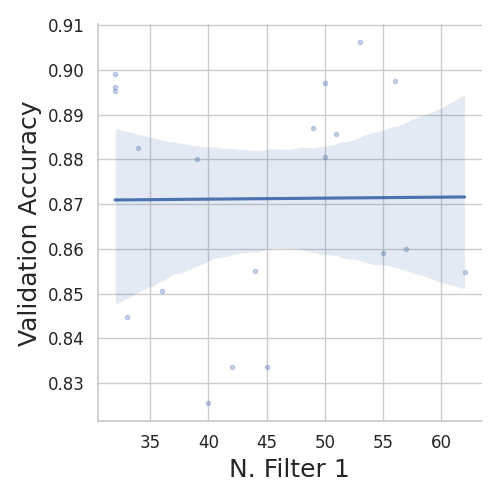

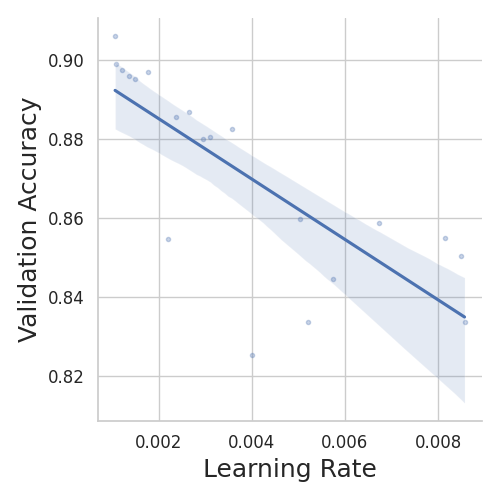
We can see that, with an increase in learning rate, the model’s validation accuracy decreases. The number of filters does not have a significant impact on the accuracy. However, N. Filter 2 shows some positive correlation with the performance.
Violinplots#

For activation functions, we can see “relu” and “leaky relu” perform better for this problem. Training with “elu” scores low accuracy on the validation set. Overall, “leaky-relu” gave the highest accuracy for the experiment.
Observations#
In an HPO process, hyperparameters are randomly selected for each trial from a predefined search space, using algorithms such as ‘random’ or ‘TPE’ to generate values. When TPE is used, ablation experiments can be biased towards a specific hyper-parameter range. For example, for different random initialization of TPE, it randomly sampled a higher learning rate for which smaller network (fewer channels) performed better. The contrary results were obtained using TPE where a random initialization sampled from smaller learning rates, favoring a larger neural network (more channels).
As a result, it appears we get contradictory conclusions for our Ablation experiments. We NOTE, that it is important to select a Random strategy when performing ablation experiments where we want to be definite about the performance of a method. For example, using a Random optimization strategy have us conclude that using XXX performs better.
When exploring the correlations, the resulting plots can provide insights into how the hyperparameters interact when used simultaneously. The plots reveal trends and patterns that can help understand the combined effect of the hyperparameters on the model’s performance.
If significant correlations are found among the hyperparameters, it may be beneficial to conduct HPO on individual hyperparameters to gain a deeper understanding of their independent effects. This focused analysis allows for a more precise evaluation of each hyperparameter’s influence on the model’s performance.
Conclusion#
We have completed the analysis part of the tutorial. We saw the complete pipeline to use ablator to train models. This starts with prototyping models to analyze the HPO results. We have significantly spent less time on writing boiler-plate code while getting the benefits of parallel training, storing metrics, and analysis.